Isolated Sandbox Environments Made Easy
Create, configure, and manage Windows Sandbox environments with a modern desktop application. Profile management, automated software installation, and full resource control.
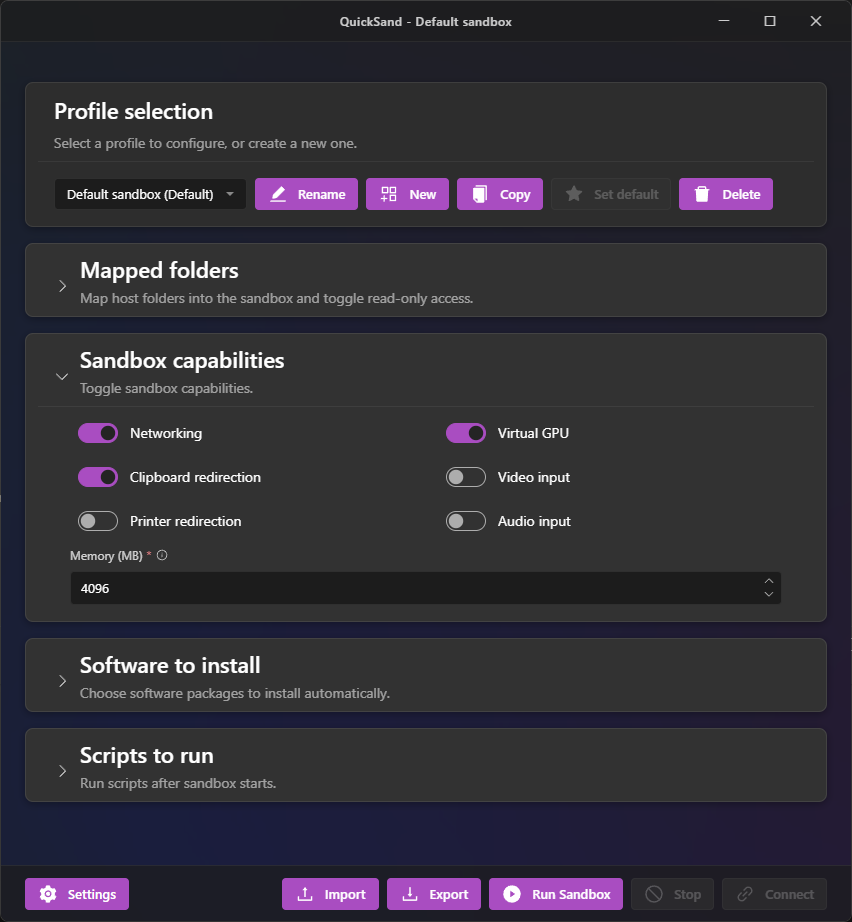
Powerful Features
Everything you need to manage Windows sandbox environments effectively
Profile Management
Create and save multiple sandbox configurations. Switch between profiles instantly and share them with your team.
Resource Control
Configure memory allocation, vGPU settings, clipboard sharing, and other resources on a per-sandbox basis.
Folder Mapping
Share files between host and sandbox with granular read-only permissions for each mapped folder.
Software Installation
Auto-install packages via WinGet or Chocolatey when the sandbox boots. Pre-configure your development environment.
Script Automation
Run custom PowerShell scripts on sandbox startup to automate setup tasks and configurations.
Network Isolation
Toggle network access per sandbox for secure testing of untrusted software or malware analysis.
Multiple Sandboxes
Run and manage multiple independent sandboxes simultaneously. Connect to each instance with its own dedicated session.
GPU Acceleration
Enable vGPU support for seamless gaming and running local LLMs inside your sandbox environments.
Installation
Get up and running in a few simple steps
System Requirements
- Windows 11 Pro, Enterprise, or Education
- 64-bit processor with virtualization support (Intel VT-x / AMD-V)
- Virtualization enabled in BIOS/UEFI
- 4 GB RAM minimum (8 GB+ recommended)
- 10 GB free disk space
Check Hardware Requirements
Ensure your system meets the minimum requirements for Windows Sandbox and Hyper-V virtualization.
Most modern PCs with Intel VT-x or AMD-V support these requirements.
Enable Windows Sandbox
Install the Windows Sandbox optional feature using PowerShell (run as Administrator):
Enable-WindowsOptionalFeature -FeatureName "Containers-DisposableClientVM" -All -Online A restart is required after enabling this feature.
Add to Hyper-V Administrators
If not running as Administrator, add your user to the Hyper-V Administrators group:
Add-LocalGroupMember -Group "Hyper-V Administrators" -Member "<username>" Log out and back in for group membership to take effect.
Download & Install QuickSand
Download the QuickSand installer and run it to complete the installation.
Download QuickSandInitialize Sandbox Templates
Run Windows Sandbox at least once via the WSB CLI to initialize system templates:
wsb start
wsb stop --id <uuid>
Replace <uuid> with the ID returned by the start command.
See It In Action
A modern, intuitive interface designed for power users
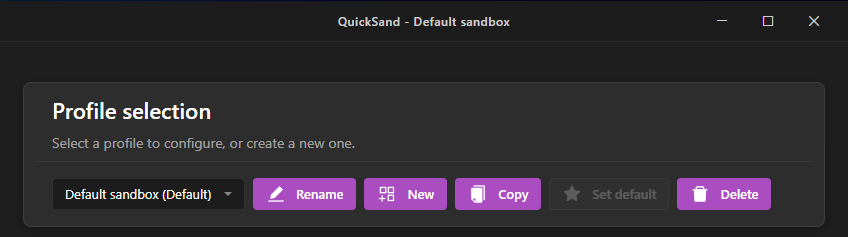
Profile Management
Create and manage multiple sandbox configurations with an intuitive interface
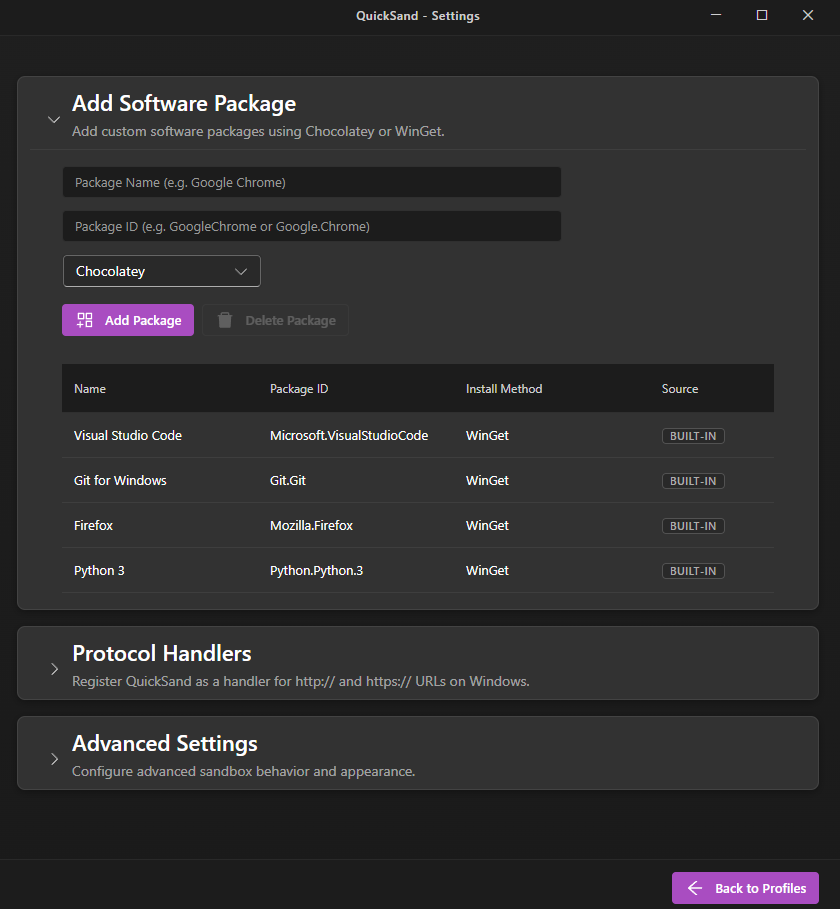
Settings & Configuration
Customize your QuickSand experience with comprehensive settings
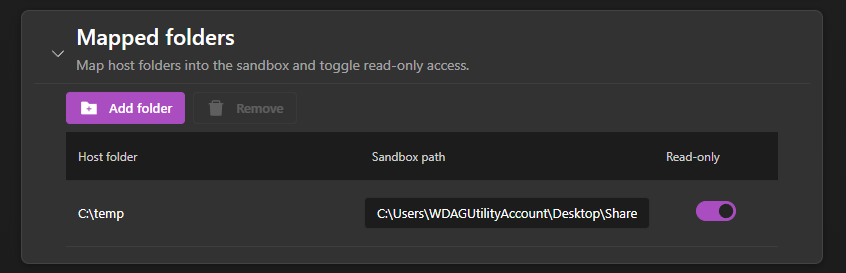
Folder Mapping
Map host folders to your sandbox with fine-grained access control
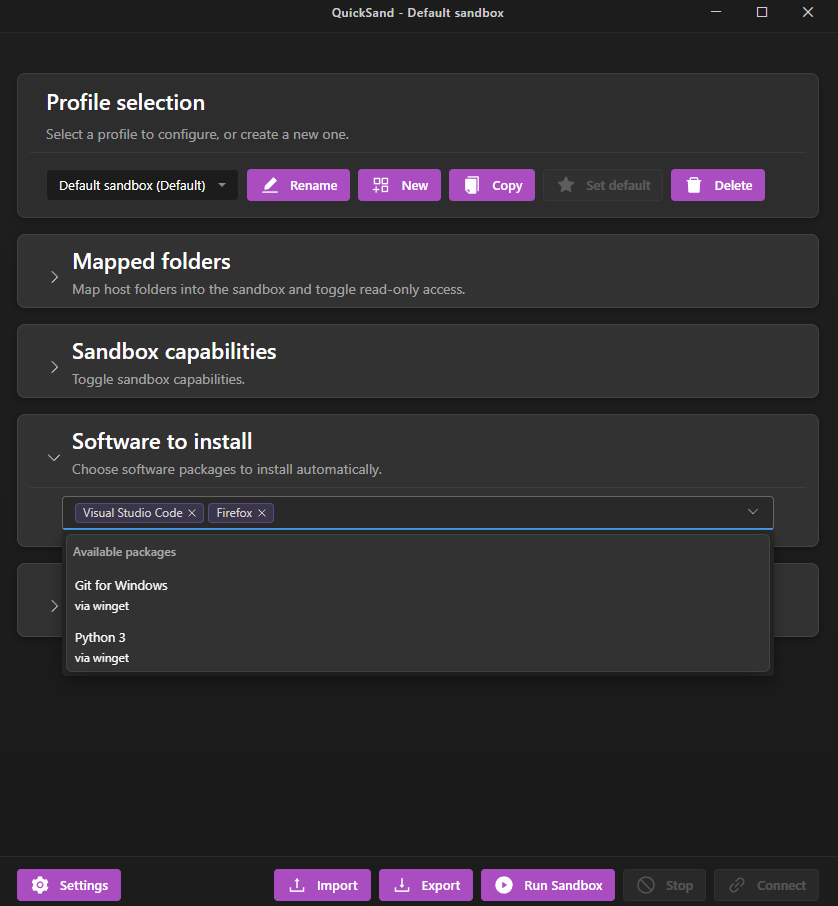
Software Selection
Choose packages to auto-install when your sandbox boots
Changelog
Track the evolution of QuickSand
- Added Added Enable Microsoft Store Apps option in advanced settings
- Added Added Always Install WinGet option in advanced settings
- Added Added Always Install Chocolatey option in advanced settings
- Added Added option to spoof Make, Model, Serial, and CPU brand using HCS backend
- Added Added RAIL client option to allow launching of apps that appear to be running natively on the host machine
- Added Added WebAuthn redirection option to allow passthrough of WebAuthn devices (e.g. Yubikeys)
- Fixed Workaround BSOD kernel bug by making RAIL/vGPU mutually exclusive
- Added Added advanced setting to select the Network Switch used by the sandbox
- Fixed Fixes Chocolatey installs
- Added Added pre/post script option to control at which stage custom scripts are run
- Removed Removed compatability notice from hardware acceleration setting
- Added Added new darkmode script
- Added Added new Gallery feature to allow importing profiles
- Added Added toggle to disable the quicksand:// protocol handler
- Added Added new installation source "quicksand.run" (custom winget provider)
- Added Option to stop sandbox on RDP window close
- Fixed Fixed issues with RDP window resizing
- Changed Use native window decoration to avoid issues running under Hyper-V
- Changed Bootstrapper now uses Windows Toasts instead of un-closable splash screen
- Fixed Enabling multi-sandboxes now properly handles existing running sandboxes
- Fixed Properly persist/restore custom accent colour setting
- Fixed Minor UI/UX fixes, e.g. button animations/state sync
- Changed The Stop Sandbox button is now a slightly less migraine-inducing red!
- Added New UDK backend, switchable via advanced settings
- Added Auto-updater for seamless in-app updates
- Added Register open-with file handler in Explorer for launching files in sandboxes
- Fixed Minor stability and performance improvements
- Added Initial release of QuickSand Tauri application
- Added HCS (Host Compute System) integration for high-performance sandboxing
- Added Profile management with save/load functionality
- Added VHDX virtual disk management for persistent and ephemeral storage
- Added Folder mapping with host-to-sandbox sharing
- Added Software installation via WinGet and Chocolatey
- Added PowerShell script automation on boot
- Added Resource configuration (memory, vGPU, networking)
- Added Network isolation and security toggles
- Added Modern Fluent UI design with dark theme
- Added URI handler registration (open new URLs in a sandbox)
Roadmap
What we're working on and what's coming next
Tauri 2.0 Migration
Complete migration from C# WPF to Rust Tauri with Leptos frontend
HCS API Integration
Native Host Compute System integration for sandbox management
Profile Gallery
Community-driven gallery to share and discover sandbox profiles
Auto-Update System
In-app update notifications and seamless upgrade experience
Explorer Context Menu
Open files directly in sandboxes via right-click "Open with" options
RAIL Client
Launch sandbox-specific apps without showing the full desktop
Office Version Installation
Install specific versions of Microsoft Office in sandboxes
Custom Logon Commands
Run custom commands automatically when a sandbox session starts
Reboot Support
Allow rebooting sandboxes without losing state or configuration
Installer Caching
Cache downloaded installers for speedier installs of larger software
Offline Installation
Support offline installation of winget packages
Browser Profile Persistence
Save cookies, browser history, and settings across sandbox runs
Custom Windows Bootloader
Custom Windows bootloader to allow disabling DSE & spoofing hardware parameters for development and research
macOS Host Support
Run QuickSand on macOS to manage Windows and macOS VMs
Guest OS Support
Support for other guest operating systems like macOS and Linux
VagrantFile Support
Custom Vagrant plugin allowing QuickSand to be used as a Vagrant provider
Devcontainer Support
Use QuickSand as a devcontainer provider for VS Code and other IDEs
Dockerfile Support
Docker-compatible CLI interface using quicksand:latest as a base image
Group Policy Configuration
Configure profiles and features via Group Policy for enterprise deployment
Have a feature request or suggestion?
Send us an Email